

Is My Home Wi-Fi Strong Enough for 4K Security Cameras?

Most single-family homes need more than a standard ISP router to support several 4K cameras without changes. Smart security systems that stream Ultra HD video need steady upload bandwidth, not just fast downloads. Weak upload speeds or thick exterior insulation can leave cameras buffering or losing their connection.
An upgraded internet plan with dedicated links between mesh units or wired access points can usually support two or three cameras. Brick siding and foil-backed insulation make that harder, especially with five family members streaming at once. Check your network before mounting anything: a weak wireless connection can leave you with cameras that need costly troubleshooting.
What's Inside This Guide
- The True Bandwidth Cost of 4K Video Feeds
- Choosing Between Mesh, Access Points, and Hardwiring
- Matching Wi-Fi Architecture to Your Ashburn Home Layout
- Balancing 4K Camera Traffic with Other Connected Devices
- Five Practical Checks to Verify Your Wireless Network
- Where to Invest and Where to Save on Security Infrastructure
- Technical Questions Local Homeowners Ask About 4K Streams
- Planning Your Camera Setup with NovaProHome
The True Bandwidth Cost of 4K Video Feeds
A 4K camera can use data even when nothing moves. Most high-resolution models send continuous footage or large amounts of video analysis data to cloud servers. A 1080p camera needs around 2 to 4 Mbps of upload bandwidth. Using H.264, a standard method of compressing video, a 4K camera can demand 10 to 15 Mbps per camera.
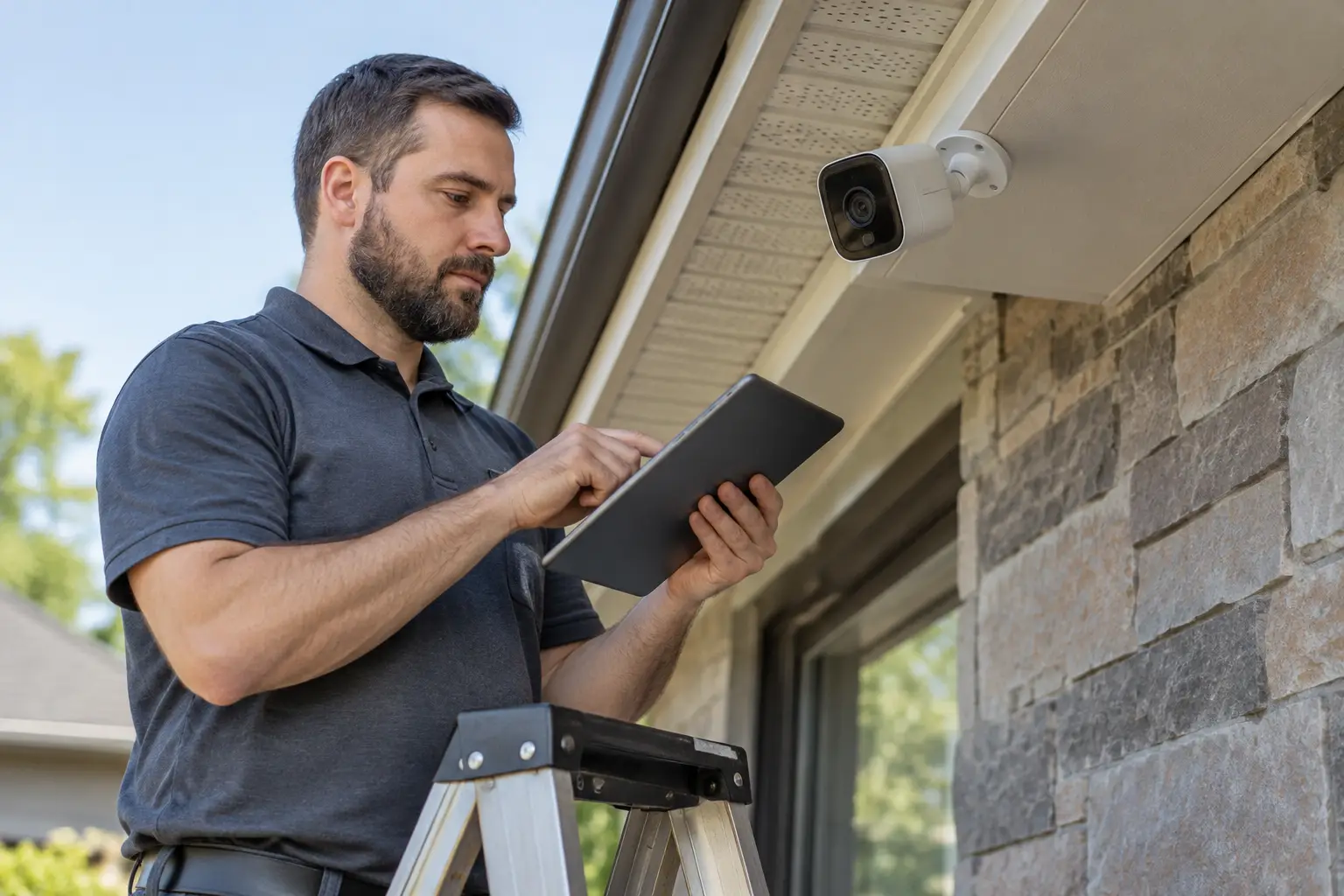
Four exterior 4K cameras need 40 to 60 Mbps of steady upload capacity just for their video feeds.
Without enough bandwidth, cameras may lower their resolution or miss footage of an important event. You could open the app while away and get a loading icon instead of a view of your driveway. Paying for Ultra HD does little good if you cannot see the recording.
Before you request a quote for outdoor cameras, test how well your connection holds its upload speed.
Practical check: Judge camera readiness by sustained upload speed at the mounting wall, not by the download speed on your internet plan.
DIY installations often miss packet loss, which happens when pieces of transmitted data fail to arrive. Foil thermal barriers and brick veneer can disrupt the signal enough to cause recording pauses. Our guide to smart security maintenance checks explains how signal problems can build over time without obvious warning.
Choosing Between Mesh, Access Points, and Hardwiring
The best connection depends on your walls and where we can run cable. Basic Wi-Fi extenders plug into an outlet, but they repeat a signal that may already be weak. They also cut usable bandwidth in half. For 4K footage, that is a poor trade.
Evaluating Transmission Methods for Ultra HD Streams
Tri-band mesh units use a dedicated backhaul, a separate wireless link between units. They suit finished homes where new Category 6 network cable is hard to run. Commercial-grade Power over Ethernet (PoE) remains the most dependable choice. One cable carries both power and data, so wireless interference does not affect the camera connection.
| Option | Recommended starting point | What to watch |
|---|---|---|
| Standard Wi-Fi extenders | Not recommended for 4K video | Halves bandwidth and causes severe video stutter and delay |
| Tri-band mesh system | Homes under 3,000 sq ft without masonry | Placement matters: exterior soffits often sit outside 5 GHz range |
| Hardwired access points | Properties over 3,500 sq ft or with multiple stories | Needs attic or crawlspace cable runs to network switches |
| PoE (Power over Ethernet) | Permanent perimeter security setups | More installation work, but no Wi-Fi congestion or batteries to manage |
Choosing and wiring the connection correctly avoids burnt-out transmitters or damaged circuit boards from DIY wiring errors. We cover those risks in our discussion of DIY versus professional security installation. Commercial-grade wired links help prevent unusable camera connections before anything is permanently mounted.
Matching Wi-Fi Architecture to Your Ashburn Home Layout
Ashburn homes range from older brick properties to large three-story houses with low-E, heat-reflective glass and open floor plans. Those materials affect how well Wi-Fi reaches the eaves. Routers tucked into basement media racks or laundry cabinets rarely send a dependable 5 GHz signal to a second-story corner soffit.
Distance and dense walls work against the faster, less crowded 5 GHz band that 4K streams rely on. The 2.4 GHz band reaches farther, but nearby networks crowd it and limit its capacity for Ultra HD video. Cameras that switch to 2.4 GHz can show lower frame rates and visible compression flaws.
| Situation or style | Recommended choice | Avoid |
|---|---|---|
| Townhome with shared walls | Wi-Fi 6 mesh with DFS, which allows access to extra channels | Crowded default 2.4 GHz channels and basic ISP routers |
| Multistory suburban house | Ceiling-mounted wired access points on each floor | Expecting one central router to reach outdoor eaves |
| Brick veneer or stone facade | PoE wiring or an outdoor-rated access point | Wireless units behind masonry or thick stone fireplaces |
| Large detached garage or shed | A point-to-point wireless link or cable laid in a trench | Linking indoor mesh units in a chain through exterior walls |
Installer's rule: A single modern exterior wall with foil insulation can reduce 5 GHz signal strength by up to 50 percent. Plan access points within 20 feet of exterior cameras.
Ordering cameras can take hours, only to leave you with a network that cannot reach the garage door or back porch. Planning a security system for your house helps avoid repeated returns and equipment that will not work together.
Balancing 4K Camera Traffic with Other Connected Devices
Your cameras share the network with the rest of the house. Smart TVs and work laptops compete with gaming consoles and connected appliances. During busy evenings, the router has to give time-sensitive traffic priority while keeping camera uploads running.
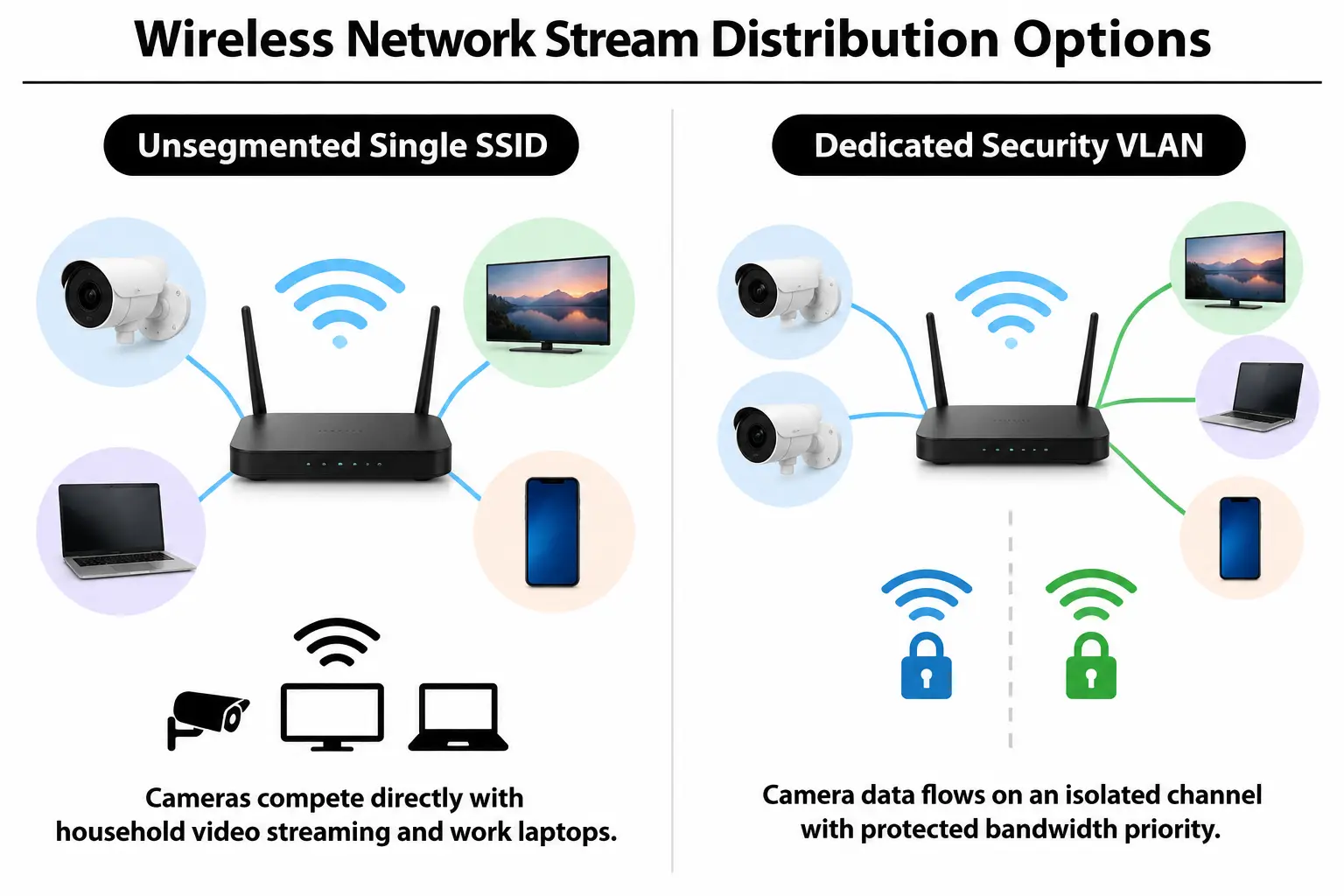
Quality of Service (QoS) rules prioritize traffic; a Virtual Local Area Network (VLAN) separates camera traffic from everyday browsing. According to broadband testing standards in the Federal Communications Commission's broadband speed guide, ordinary household use can fill a residential connection quickly if you overlook upload limits.
| Starting point | Suggested change | What to test | Intended effect |
|---|---|---|---|
| One shared network name (SSID) | Separate the 2.4 GHz and 5 GHz networks | Signal stability at exterior cameras | Stops cameras switching to slower, crowded bands |
| Unmanaged network switch | Managed Gigabit switch with VLAN support | Traffic broadcast across the main network | Separates camera traffic for privacy and smoother local use |
| Default router priorities | Enable QoS for camera MAC addresses, their unique network identifiers | Video delay during evening gaming or Zoom calls | Keeps recording running during busy household use |
| Cloud-only recording | Local network video recorder (NVR) with selected cloud backups | Internet upload use during continuous recording | Keeps 4K footage local and frees upload capacity for mobile use |
Device priority and network separation also matter for security. Connected household devices on one shared network can create privacy risks: a poorly configured camera may expose local network drives. For a reliable security setup, the wireless equipment and main router need to work together.
Five Practical Checks to Verify Your Wireless Network
Before drilling into siding, test the network at each planned mounting spot. These checks tell you whether the router you already own can carry the camera traffic where you need it.
Video: A look at an 8MP 4K Wi-Fi pan-tilt-zoom security camera (securitybros). Ask for a quote for your installation.
- Measure upload speed: Take a phone outside to the exact mounting spot and connect to your 5 GHz network. Run an upload test. Leave at least 15 Mbps of spare capacity beyond regular household use.
- Check received signal strength (RSSI): Look in the device's management app for its Wi-Fi status. Aim for -30 to -60 dBm, a measure of signal power. Readings weaker than -70 dBm mean frequent dropped 4K frames.
- Check channel crowding: Use a Wi-Fi analyzer that follows IEEE networking standards. See whether nearby routers broadcast on the same channel as yours.
- Run a sustained ping test: Send test messages to your router for five minutes from the mounting spot. Packet loss above two percent means video streams will stutter and reconnect repeatedly.
- Test during busy hours: Repeat your network checks while others stream 4K movies or play games. Confirm that the camera connection holds up under the household's heavier network load.
Before you buy: An indoor speed test cannot prove an outdoor camera will work. Exterior materials such as brick or stucco can sharply reduce the data that gets through.
Inconsistent results need attention before you add more battery-powered cameras. More devices will only make the same weak connection harder to live with. Our guide to managing multiple security apps covers why dependable networking matters to the equipment you use every day.
Where to Invest and Where to Save on Security Infrastructure
You do not need to replace every device to support high-resolution video. Money spent on the equipment carrying your network traffic buys more reliability than expensive cameras connected to an outdated router.
Commercial-grade access points or properly installed low-voltage cable can serve you for years. Skip decorative router features and basic plug-in boosters to keep costs down. At NovaProHome, we often see costly 4K cameras held back by a basic router sitting behind a television.
| Budget level | What to prioritise | What to question |
|---|---|---|
| Practical ($) | Dedicated Wi-Fi 6 mesh units close to exterior walls | Buying the highest-resolution cameras before testing upload capacity |
| Balanced ($$) | Wired Ethernet links to key mesh access points | Expensive gaming routers with unnecessary colored lighting |
| Engineered ($$$) | Full PoE camera system with a local recorder and battery backup | Depending entirely on cloud subscriptions for around-the-clock video |
Battery backup deserves a place in the budget, too. Our guide to security during power outages explains why keeping switches and modems powered matters as much as choosing camera locations.
Technical Questions Local Homeowners Ask About 4K Streams
Can I run four 4K security cameras on a 300 Mbps internet plan?
Yes, but check the upload allowance rather than the advertised download speed. Most local cable plans with 300 Mbps downloads provide only 10 to 20 Mbps uploads. Four 4K cameras can overwhelm that connection. Fiber plans with equal upload and download speeds handle the load much better.
Does moving to H.265 compression solve my Wi-Fi bandwidth issues?
H.265 compresses video using roughly 40 to 50 percent less bandwidth than H.264 without losing picture quality. That can bring a 4K stream closer to 7 Mbps rather than 14 Mbps. Compression cannot fix a weak radio connection, though. The wireless link still needs to stay stable to avoid missing frames.
Why does my 4K camera drop offline only at night?
Infrared night-vision lights draw more current from the transformer or internal battery, which can cause voltage drops. Night footage also has more digital noise, the grain you see in dark images. That footage is harder to compress, so larger files put sudden extra demand on the wireless connection.
Will 4K security cameras slow down my family's internet browsing?
They can without QoS traffic rules or band steering, which directs devices to a suitable Wi-Fi band. Continuous uploads from several Ultra HD cameras can fill the upload connection. The resulting delay makes browsing feel slow and can disrupt calls or gaming throughout the house.
Is Wi-Fi 6 necessary for exterior 4K cameras?
Wi-Fi 6 is optional, but its OFDMA technology lets routers share airtime more efficiently among devices sending large amounts of data. The Wi-Fi Alliance sets standards that help compatible routers schedule that traffic. On a crowded home network, this reduces stream dropouts.
Planning Your Camera Setup with NovaProHome
At NovaProHome, we use our electrical engineering foundation to design and install camera systems without overloading your home network. Planning the connections first avoids repeated experiments with extenders or camera locations that cannot hold a signal. Before buying equipment, check these points:
- Upload allowance: Check that your internet plan provides at least 10 Mbps upload for each planned 4K camera.
- Wall materials: Look for brick or plaster between the router and camera locations, along with radiant foil barriers.
- Wi-Fi band: Make sure cameras can use a clear 5 GHz connection instead of crowded 2.4 GHz channels.
- Recording storage: Compare local network recording with the ongoing cost of cloud storage before choosing where footage will go.
- Power supply: Verify that low-voltage transformers and power supplies can support cameras while they stream continuously.
For help planning whole-home cameras and alarms, contact our team to schedule a full network and security assessment at your Ashburn home.
Ready to engineer your smart home?
Start with a free 20-minute discovery call. No pressure, no sales script — just a plan.